
Sudoku.com - Number Games is the free Sudoku app from Easybrain, and it is one of the most downloaded Sudoku apps on the App Store — over 10,000 classic puzzles, six difficulty levels from Fast to Expert and Giant, daily challenges with trophies to win, and seasonal events with unique medals. The rules are simple: fill a 9x9 grid so every row, column and 3x3 box contains the numbers 1 to 9 exactly once, with no repeats. The challenge is that every puzzle has only one solution, and the harder ones demand real technique, not guessing. It is free to download and free to play on iPhone and iPad, with in-app purchases, and our Dinsun critic scored it 70 out of 100.
This guide walks through the game in order, from your first puzzle to the expert grids, in the phases you will actually play through. Sudoku.com has no fixed levels to memorise — every puzzle is a fresh grid — so the steps below teach you the rules, the app's tools, and the solving techniques in the order you will need them, and say where each tip comes from: the App Store listing, the developer's own how-to-play pages, the published Sudoku.com video tutorials, or our own critic's notes. Our Dinsun critic called Sudoku.com the "Gold Standard" of basic Sudoku apps — the input is fast, the note-taking works exactly as it should, and there are thousands of puzzles — with the warning being the ads: 30-second unskippable ads after games, pushing a subscription instead of a one-off payment to remove them. The praise was for the perfect UI for Sudoku, the daily challenges that keep it fresh, and the great difficulty scaling; the warnings were the obnoxious ad frequency, the subscription model for a basic puzzle, and occasional hint-system bugs.
Quick Facts
Developer: Easybrain Ltd | Price: Free, with in-app purchases | App Store rating: 4.8 out of 5 (about 1.9 million ratings) | Size: about 255 MB | Requires iOS 15.0 or later | Age rating: 12+ | Playtime: endless (ongoing). Released March 30, 2017; current version 7.22.0 (October 2026).
Get Sudoku.com - Number Games on the App Store
This is an unofficial fan guide and is not affiliated with Easybrain. Strategy tips were checked against the App Store listing, the Sudoku.com and Easybrain how-to-play pages, and the Sudoku.com video tutorials linked below. Sudoku.com is a puzzle game with a fresh grid every time, so the steps below teach you the rules and techniques in order, not a fixed route through set levels. The game can change with updates, so treat this as a working route through the game, not gospel.
Watch the game first
If you have never played Sudoku, start with this 30-second video from Sudoku.com's own channel — it shows the rules in action on the app itself, so you can see how the grid, the number pad and the notes work before you start. Click the picture to watch on YouTube.
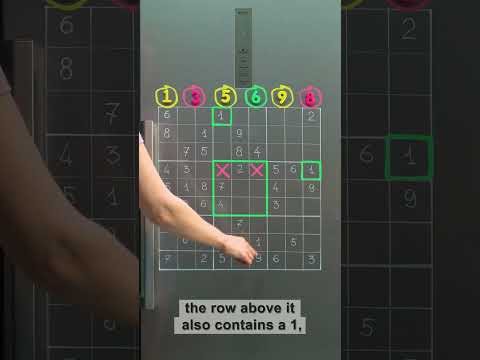 ▶
Watch: How to play Sudoku in 30 seconds (Sudoku.com)
The second video is a full how-to-play tutorial from Gather Together Games that walks through the rules, the setup, the objective and how a game is won, step by step. It is a general Sudoku tutorial rather than a video of the Sudoku.com app, but the rules it teaches are exactly the rules this app plays by. Use it when a written step below is hard to picture. Click the picture to watch on YouTube.
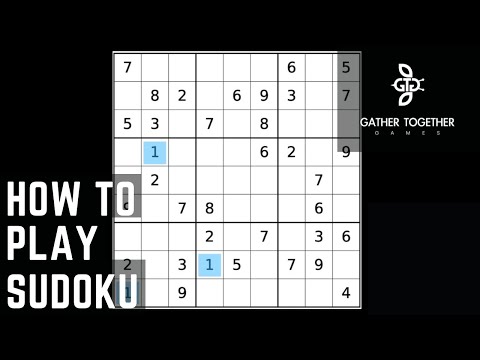 ▶
Watch: How To Play Sudoku (Gather Together Games)
Strategy 1: Scan first, write nothing — the only rule that matters is "no repeats"
Every Sudoku puzzle follows the same three rules, from the developer's own how-to-play page: each row must contain the numbers 1 to 9 exactly once, each column must contain them exactly once, and each 3x3 box must contain them exactly once. Before you tap anything, scan the grid for the numbers that are already nearly complete — a row, column or box with eight numbers filled in has only one empty cell, and the missing number is forced. Sudoku.com's own advice is the same: do not guess. If you cannot see where a number goes, keep scanning other areas of the grid until an opportunity appears. Sudoku rewards patience, pattern recognition and process of elimination, not blind luck. On Easy and Fast puzzles, scanning alone will solve most of the grid before you need any real technique.
Strategy 2: Turn on Notes early and let them do the bookkeeping
Notes — pencil marks — are the single most important tool in the app. When you are unsure which number fits a cell, tap the Notes button and mark every possible candidate in it. The App Store listing promises that every time you fill in a cell, your notes are automatically updated, so a candidate that is ruled out disappears from the notes in the same row, column and box without you having to erase anything. The practical habit is this: when you get stuck, fill in the notes for every empty cell in one box, then look for a cell with only one candidate left — that is a naked single, and it is a free number. Work box by box, and the notes turn a puzzle you are staring at into a puzzle that is solving itself one forced move at a time. If the notes feel like clutter, tap a number on the pad to highlight every matching digit on the grid, which makes scanning much easier.
Strategy 3: Use Auto-Check while learning, then turn it off when you want a real challenge
Sudoku.com gives you a choice, and the App Store listing spells it out: challenge yourself and figure out your mistakes, or enable Auto-Check to see your mistakes as you go. While you are learning, leave Auto-Check on — a wrong number lights up immediately, so you learn the shape of your mistakes instead of discovering three moves later that the puzzle has gone wrong somewhere you cannot find. Once you are comfortable on Medium, turn it off for the challenge: solving without a safety net forces you to check your own logic, and it is how you build the habit of verifying a placement before you commit to it. The duplicate-highlighting feature works the same way — it flags repeats in a row, column or block so you catch a slip the moment it happens. Use the training wheels until they slow you down, then take them off.
Strategy 4: Learn the hidden single — the technique that unlocks Medium and Hard
Scanning and naked singles will carry you through Easy. Medium and Hard need the next idea, and it is the one the Sudoku.com tutorials teach first: the hidden single. Pick a number — say 5 — and look inside one 3x3 box. The 5 might be possible in several empty cells, but check each one against its row and column: if the 5 is blocked in every cell except one, that cell must be the 5, even though it had other candidates written in its notes. The number was hiding in plain sight. The same idea works across a whole row or column: if a number can only go in one cell in that row, that is where it goes. Learn to hunt hidden singles before you touch Hard puzzles, and keep a second technique in your pocket for when they run out: pointing pairs — when a number can only sit in two cells of a box and both are in the same row, it cannot appear anywhere else in that row, so you can erase it from the notes of the other cells in that row. That one elimination often unlocks the next hidden single, and the puzzle starts moving again.
Strategy 5: Play the Daily Challenge and Seasonal Events — and know what the ads cost you
The puzzles never run out — the app has over 10,000 of them — so the thing that keeps you coming back is the daily loop. Complete the Daily Challenge to win unique trophies, and take part in Seasonal Events to win unique medals; the App Store listing lists both as headline features, and our critic praised the daily challenges for keeping the game fresh. Check your Statistics screen after each session to track your progress and your best times per difficulty. One honest warning from our critic: the ads. A 30-second unskippable ad after a game is the price of the free version, and the app pushes a subscription rather than a one-off payment to remove them. If you play every day, the subscription is worth weighing against the interruption — but do not pay for it on your first day. Play free for a week first, learn whether the daily habit sticks, and only then decide whether removing the ads is worth it to you.
Walkthrough 1: Your first puzzles — Fast and Easy, learning the grid
Start on Fast or Easy. The grid starts with many numbers already filled in, so the puzzle is mostly scanning (Strategy 1). Tap a number on the pad to highlight it everywhere on the grid — pick the number that appears most often, and look for the row, column or box where it can only go in one place. Fill in the forced numbers first, then the next most common number, and keep going until the grid starts to empty out. Do not use hints yet: on Easy, a hint is a wasted opportunity to learn. Your goal in this phase is not speed, it is familiarity — get comfortable with the number pad, with tapping a cell to select it, and with the way the app highlights the row, column and box of the cell you are working on. Finish ten or so Easy puzzles before you move on; the app's Statistics screen will show your average time dropping as the scanning becomes automatic.
Walkthrough 2: Notes and candidates — the step that makes Medium possible
Move up to Medium when Easy puzzles feel routine. This is where you switch Notes on (Strategy 2) and build the habit properly. When you stall on a puzzle, stop guessing and fill in the notes for every empty cell in the box you are working on, then hunt for naked singles — cells with only one candidate left. Each one you place updates the notes around it, and that often creates another naked single in the next box. If you stall again, use a hint — the app's hint will guide you when you are stuck, and on Medium it is a teaching tool, not a crutch: read what it tells you, then look at the grid and work out why that number goes there before you carry on. Two or three Medium puzzles a day, with notes on, is the fastest way to make the technique stick. If a puzzle still will not move, check that you have not made a silent mistake — with Auto-Check off, one wrong number early on can freeze a puzzle completely, and the only fix is to undo back to the mistake.
Walkthrough 3: Hard puzzles — hidden singles and pointing pairs
On Hard, scanning and naked singles are not enough on their own. This is the phase where Strategy 4 does the work. When you stall, pick a number and sweep it across the grid: for each box, ask where that number can still go, and look for the hidden single — the one cell left. Then try the pointing pair: find a number that can only sit in two cells of a box, both in the same row, and erase that number from the notes in the rest of that row. Work through the numbers 1 to 9 in turn, one number at a time, rather than jumping around the grid — a full sweep of all nine numbers usually finds two or three placements, and each placement unlocks more. Keep your notes complete and up to date; a Hard puzzle solved with sloppy notes is a Hard puzzle that stalls. Expect Hard puzzles to take several times longer than Medium, and do not be discouraged by that — the jump from Medium to Hard is the biggest difficulty step in the game, and it is supposed to feel like one.
Walkthrough 4: Expert and Giant — the long game
Expert puzzles have very few numbers filled in at the start, and Giant is the toughest tier the app offers. The techniques are the same ones you learned on Hard — hidden singles, pointing pairs, and careful note-keeping — but they have to be applied more deeply: you will need to chain eliminations, where one pointing pair unlocks a hidden single, which unlocks another pointing pair, and so on. Take your time and treat an Expert puzzle as a session, not a race: solve in short sittings, use the app's save-and-resume, and do not be afraid to leave a puzzle and come back to it fresh. If you are truly stuck, a hint is honest help, not failure — our critic noted occasional hint-system bugs, so if a hint looks wrong, double-check it against the grid before you trust it. The reward for Expert is not a trophy, it is the moment a puzzle that looked impossible for twenty minutes suddenly collapses in a cascade of forced moves. That is the whole game, and it never gets old.
Walkthrough 5: The daily loop — challenges, events, statistics and streaks
Once you can solve Medium comfortably, the game becomes a daily habit rather than a climb. Open the app, play the Daily Challenge first — it is a fresh puzzle every day, and completing it earns a unique trophy — then play a puzzle at your current difficulty for practice. Check the Seasonal Events whenever one is running: they are limited-time puzzle sets with unique medals as rewards, and they are the only content in the game that can be missed, so do not leave them to the last day. Use the Statistics screen to watch your average solve time per difficulty fall over weeks, and try the three colour themes in the settings if you play at night — the dark theme is easier on the eyes for a long session. This is also the stage to decide about the ads (Strategy 5): if you are playing daily, a month of 30-second ads after every game adds up to real time, and the subscription starts to look like a fair trade. But the puzzles themselves are free, and they always will be — the daily loop costs nothing unless you choose to pay.
Stuck? A short checklist before you look anything up
First, re-scan for forced moves: a row, column or box with only one empty cell tells you the answer for free, and players miss these more often than they admit. Second, check your notes — if you have not filled them in for the box you are stuck on, do that now, and look for a naked single. Third, sweep one number across the whole grid and hunt for a hidden single, then try a pointing pair to eliminate a candidate from a row. Fourth, if the puzzle has been frozen for a while, consider that you may have made a mistake early on — turn Auto-Check on for a moment, or undo a few moves, and see whether a wrong number is blocking everything. And if a written step is hard to picture, watch the two videos above again — the Sudoku.com short shows the rules on the app itself, and the Gather Together Games tutorial walks through the rules and the winning condition from the beginning.
Have you finished your first Expert puzzle, or are you stuck somewhere on the grid? Tell us in the comments — and if you want the next walkthrough, tell us which game from our iOS list you want covered next.