
Montessori Preschool, Kids 3-7 is not a game with levels to beat — it is a digital Montessori classroom for children aged 3 to 7, with over 1,000 activities designed by certified Montessori teachers: reading and writing, math, science, pre-coding, art, music, nursery rhymes and podcasts. Your child walks into a little digital school, opens a classroom, and learns by doing at their own pace — no timers, no scores, no flashing rewards for tapping the right thing. It is free to download on iPhone and iPad, with a subscription unlocking the full curriculum, so this guide walks you through the whole app in order — setting up a profile, the reading and math paths, the science and coding rooms, the arts, and the parent dashboard that controls it all — instead of pretending there is one fixed path through it.
Where a tip comes from the App Store listing, the app's own onboarding, or published reviews that agree with each other, I say so. Where the app leaves the order up to your child, I say that too, instead of pretending there is one fixed answer. Our Dinsun critic scored Montessori Preschool 62 out of 100 and called it "a rare high-quality educational tool that actually respects its target audience," praising the rigorous educational content and the clean, non-distracting interface, with the warning that the subscription is expensive and the app runs out of road for older kids.
Quick Facts
Developer: EDOKI ACADEMY | Price: Free, with in-app purchases (subscription: $9.99 a month or $69.99 a year in the US App Store, with a 7-day free trial) | App Store rating: 4.5 out of 5 (about 4,800 ratings) | Size: about 745 MB | Requires iOS 13.0 or later | Age rating: 4+ | Playtime: open-ended — over 1,000 activities for ages 3 to 7; our Dinsun critic played 4 hours and explored all curriculum sections. The app is an App Store Editors' Choice, and the current version is 6.6.2, released 20 October 2026.
Get Montessori Preschool, Kids 3-7 on the App Store
This is an unofficial fan guide and is not affiliated with EDOKI ACADEMY. Tips were checked against the App Store listing, the app's own onboarding and support pages, the Educational App Store review and Common Sense Media's review, which agree on how the app works. The app changes with updates, so treat this as a working route through the app, not gospel.
Watch the game first
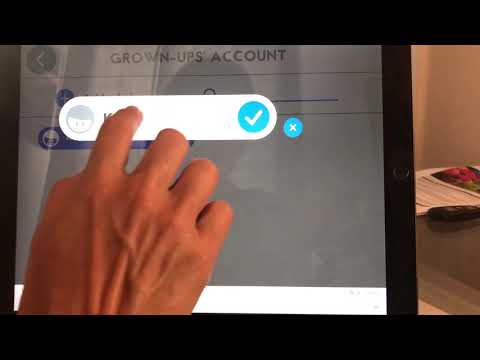
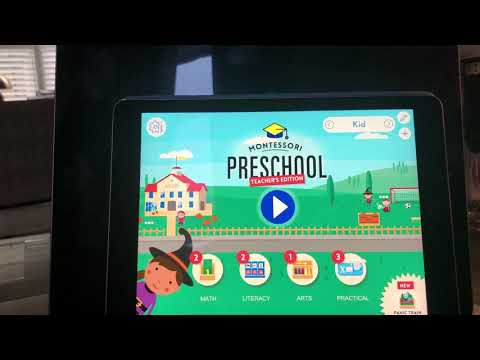
If you have never seen the app, these two short official videos from Edoki Academy show how it actually works — setting up profiles and using it with more than one child on several devices. They are how-to videos rather than a trailer, but they show the real classrooms, the parent dashboard and the look of the app better than any description. Click the picture to watch on YouTube.
 ▶
 ▶
Watch: Montessori Preschool — How to use it on multiple devices, Part 2 (Edoki Academy)
Strategy 1: Set up the profile and the parent dashboard before handing the iPad over
The first thing the app asks for is a child profile: your child's age and your learning priorities — reading, maths, logic, creativity or language learning, as the Educational App Store's review describes the onboarding. Do this yourself, with your child beside you, and do not skip it: the age and priorities shape which activities the dashboard suggests first. Then open the parent dashboard before your child starts playing. The App Store listing spells out what it controls: set a daily time limit from 10 minutes to unlimited and the app locks itself when time is up, choose exactly which classrooms your child can open, and follow progress on a dashboard that tracks every activity and suggests what comes next. The dashboard is also where you download the Parent's Guide and print the free seasonal activity sheets. Set the time limit first — ten or fifteen minutes is plenty for a 3-year-old — and only open the classrooms you want your child in. There are no ads and no third-party links in the app, so once the dashboard is set, your child cannot stumble out of it.
Strategy 2: Follow the Montessori order — sounds before letters
In a real Montessori classroom, literacy starts before letters: children train their ear with sound games, and only then learn the letters themselves. The app follows the same order, and the App Store listing states it plainly: in the Early Literacy class, children start with fun sound games like "I spy" and move all the way to reading comprehension. So do not jump your child straight to spelling. Start with "I spy" — the game says a sound and your child taps the picture that starts with it — then move to matching beginning letter sounds with cards, then to tracing letters, then to spelling, and finally to reading. Common Sense Media's review describes the same sequence and adds a useful detail: in the writing exercises you can choose print or script, and lowercase or uppercase letters. If your child is learning print lowercase at school, set the tracing to match — the app will happily teach script uppercase instead if you let it. The point of the Montessori order is that each step is easy because the one before it was done first.
Strategy 3: Let the dashboard suggest the next activity
You do not have to plan a lesson. The parent dashboard tracks every activity your child finishes and suggests what comes next, and the app's own description says the same. After a few sessions, check the dashboard and look at what your child actually did, not what you hoped they would do: if they spent twenty minutes on the golden beads and skipped the phonics games, that is the app telling you where their interest is. The dashboard's suggestion is usually the next step in the same subject, so the simplest routine is to open the app, let your child pick a classroom, and afterwards open the dashboard and tap the suggested activity together for next time. The app is built around self-directed learning — the App Store listing says "your child moves at their own pace and learns by doing" — so the dashboard is your steering wheel, not a timetable.
Strategy 4: Try the free activities first, then decide on the subscription
The app is free to download with limited access to selected activities, and the full 1,000-plus curriculum needs the subscription — $9.99 a month or $69.99 a year in the US App Store, with a 7-day free trial, according to the App Store listing and Common Sense Media. That is the Dinsun critic's main complaint: the subscription is expensive, and the critic's value verdict is "wait for sale." So do not subscribe on day one. Spend a week on the free activities first and watch two things: whether your child comes back to the app on their own, and whether they hit the paywall in a subject they love. If they keep asking for the locked math games, the subscription is doing its job; if they are happy in the free rooms, there is nothing to buy yet. If you do subscribe, the yearly plan is far cheaper than paying monthly, and the subscription works on up to 7 devices, so a second iPad or a parent's phone does not cost extra. Remember to turn off auto-renewal in your Apple Account settings if you only want one term — the App Store listing says subscriptions renew automatically unless you switch that off.
Strategy 5: Keep sessions short, and use the quiet parts of the app on purpose
This is a calm app by design — the Dinsun critic specifically praised the clean, non-distracting interface, and one parent review on the App Store put it well: "simple visual and auditory aids are such a nice break from the fluorescent colors and loud sounds which usually accompany children's games." Use that calm on purpose. The daily time limit in the parent dashboard is there for a reason: ten to twenty minutes a day is a real session for a 3- to 7-year-old, and the app locks itself when time is up, so you do not have to be the one taking the iPad away. For winding down, use the podcasts — audio stories and episodes the App Store listing describes as "screen-free learning, for car rides, quiet time or winding down" — and the nursery rhyme sing-alongs (Wheels on the Bus, Head, Shoulders, Knees & Toes, Old MacDonald). And take the learning off the screen when you can: the app offers free printable activity sheets for holidays and celebrations, and the Parent's Guide suggests hands-on versions of the same games.
Walkthrough 1: The first run — profile, onboarding and the digital school
Download the app — it is about 745 MB, so use Wi-Fi — and open it as a parent first. Create your child's profile, pick their age, and choose the learning priorities you care about most. The app opens into a digital school: lockers, a corridor full of daily responsibilities and discoveries, and classrooms to walk into. Your child can interact with cute avatars and customise their school using points earned while playing, as the App Store listing describes — the points are the app's reward system, and Common Sense Media notes they exist to stand in for the adult encouragement a real Montessori classroom would give. In this first session, do not try to cover everything. Let your child open one classroom — Early Literacy is the natural first stop — and play two or three activities. Watch how the app teaches: an on-screen hand shows what to do, and instructions are spoken when they are available. When the time limit you set runs out, the app locks; that is the moment to open the parent dashboard together and look at what was completed.
Walkthrough 2: Early Literacy — from "I spy" to reading
Start in the Early Literacy classroom, and start at the beginning even if your child already knows some letters. Step one is the sound games: "I spy" and the beginning-sound matching cards, where the app says a sound and your child finds the picture that starts with it. Step two is letter tracing — the app shows the letter shape and your child traces it, in print or script, lowercase or uppercase, whichever you chose in Strategy 2. Step three is spelling: building words from the sounds your child now recognises. Step four is reading comprehension: short texts your child reads and answers questions about. The app will not force this order on you — your child can tap any activity — but the curriculum is built so each step is easier for the one before it, and the dashboard's "what comes next" suggestion will quietly push in this direction. If your child gets stuck on a tracing activity, check the letter style setting first: a child who is learning print lowercase at school will struggle with script, and that is a settings problem, not a learning problem. There is also a Chinese language option in the app's language settings, noted by Common Sense Media, if your family is learning Mandarin.
Walkthrough 3: Math — counting, golden beads and the number rods
The Math classroom is where the Montessori materials show up most clearly. It starts with counting and recognising numbers — the App Store listing says children count, recognise and trace numbers from zero to one million — and the tracing works the same way as the letters in the literacy room. Then come the classic Montessori materials: the golden beads for place value and the number rods for length and quantity. Common Sense Media's review describes manipulating the golden beads as one of the core activities, and it is the one to watch for: your child drags units, tens and hundreds into place, and the app shows the number growing as the beads stack up. After that comes a hands-on introduction to addition and subtraction using the same materials, so a sum is not a symbol on a screen but beads being added to a tray. The order matters here too — do not skip to addition while counting is still shaky. If your child is under five, stay in counting, tracing and the bead games for a while; the addition and subtraction rooms will still be there in a few months, and the dashboard will suggest them when the counting activities are done.
Walkthrough 4: Science, coding and the practical life classroom
Once reading and math are moving, open the Science room. The App Store listing describes experiments and discoveries "that turn everyday curiosity into real understanding," and one parent review mentions the volcano experiment as the standout — your child sets it off and watches what happens. The Coding & Logic room is the quiet surprise of the app: pre-coding games that build sequencing, reasoning and problem-solving long before your child writes a line of code. The pattern is the same as the rest of the app — start with the simplest sequencing game, where your child puts steps in order, and let the dashboard suggest the harder ones. Then there is the Practical Life classroom, where your child does small everyday jobs — Common Sense Media mentions watering plants among the exercises. One honest warning from that same review: some of the step-by-step instruction icons in the practical life activities are very small, so a younger child may not see what the icon means. If your child stalls on a practical life activity, sit beside them and read the icons out loud for the first few tries — the icons do not get bigger, but your child will learn what they mean.
Walkthrough 5: Arts, music, podcasts and the reward loop — finishing the day
The Arts classroom covers colours (primary and secondary), shapes and drawing: your child learns the names of every shape, colours pictures, draws freely and plays with symmetry tools. The Music room has four games that teach rhythm and instruments — the App Store listing counts them exactly — plus the nursery rhyme sing-alongs for younger children. The podcasts are the app's best feature for parents who want the screen off: audio stories and episodes to listen to in the car or at quiet time. And around all of this sits the reward loop: activities earn points, and points buy decorations to customise the school — the avatars, the lockers, the corridor. That is the end of the daily loop, and it is worth understanding: the app has no final level and nothing to "beat." The goal is a child who opens the app, picks a classroom, finishes a few activities, and puts it down when the time limit locks the screen. If that is happening, the walkthrough is done — the rest is just more activities in the same rooms, plus the weekly postcard series the app adds (a new interactive postcard to read along with each week) and the AR playroom, where the school's hamster and rabbit can be played with in 3D or augmented reality on supported devices.
Stuck? A short checklist before you look anything up
First, check the profile: is the age set right, and are the learning priorities the ones you actually want? A 3-year-old shown 6-year-old activities will look stuck when the app is simply aimed too high. Second, check the letter style: in the writing exercises, is the tracing set to print or script, lowercase or uppercase — and does it match what your child is learning at school? Third, check the dashboard: what did your child actually finish, and what is it suggesting next? The suggestion is usually the fix. Fourth, check the subscription: if an activity is locked, it is probably behind the paywall, not broken — the free version only includes selected activities. Fifth, check the time limit: if the app locked itself mid-activity, that is the daily limit doing its job, not a crash. And if a written step is hard to picture, watch the official Edoki how-to videos above — they show the real classrooms, the dashboard and how profiles work on more than one device.
Have you set up a profile this guide helped with, or is your child stuck somewhere else in the app? Tell us in the comments — and if you want the next walkthrough, tell us which game from our iOS list you want covered next.