
iGun Pro 2 is not a shooter. There are no enemies, no missions and no score to beat — it is a virtual gun collection and customisation app, and it is very good at exactly that. You collect real-world firearms as cards, fire them with realistic loading, firing and reloading animations, fit attachments, paint your own designs, and enter those designs into contests against players around the world. It is free to download on iPhone and iPad, from Crimson Moon Entertainment, the makers of the original iGun Pro, which passed 55 million downloads. The sequel launched in 2017 and is still updated — version 2.198 arrived in October 2026.
This guide teaches the whole loop in order, phase by phase, because there are no levels to walk through one by one. Where a step comes from the App Store listing, the developer's own support FAQ or player reviews, I say so. Where sources disagree, I say that too, instead of picking one version and pretending the other does not exist. Our Dinsun critic scored iGun Pro 2 60 out of 100 and called it a game to skip, praising the weapon models, sound and mechanical detail (visuals 9, audio 9, mechanics 10) while marking it down for having almost no game in it (gameplay 4, fun 5, narrative and story 1 out of 10 — scores that do not really apply to a simulator with no story). My own verdict is below, and it is not the same as Dinsun's.
Quick Facts
Developer: Crimson Moon Entertainment LLC | Price: Free, with in-app purchases | App Store rating: 4.8 out of 5 (about 87,000 ratings) | Size: about 222 MB | Requires iOS 15.0 or later | Age rating: 13+ on the live App Store page (the iTunes lookup still says 12+, so the live page wins) | Internet connection required, per the developer's support FAQ | Playtime: open-ended — a collection game with no ending. In-app purchases on the App Store page: Season Gold Pass $4.99, iGun Black $6.99, rubies $0.99–$19.99, limited-time bundles $1.99–$19.99. The listing also flags loot boxes, messaging and chat, user-generated content and in-app purchases.
Get iGun Pro 2 on the App Store
This is an unofficial fan guide and is not affiliated with Crimson Moon Entertainment. Steps were checked against the App Store listing, the developer's support FAQ on igunpro.com, the 2017 launch announcement and player reviews. The game changes with updates, so treat this as a working route through the game, not gospel.
Watch the game first
If you have never seen the app, this is the official iGun Pro 2 trailer from Crimson Moon Entertainment (re-uploaded by World Gaming Play). It shows the firing animations, the attachment system and the painting tools in about a minute, with no spoilers — there is nothing to spoil. Click the picture to watch on YouTube.
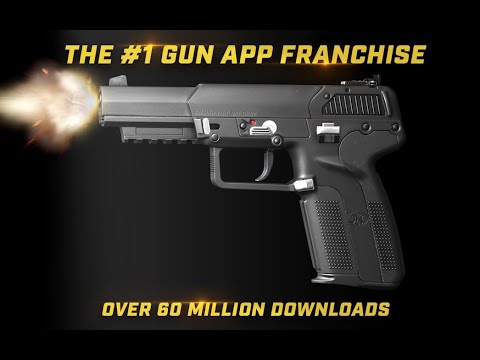 ▶
Watch: iGun Pro 2 — The Ultimate Gun Application | Official Trailer (Crimson Moon Entertainment)
For a longer look at the app in use, this gameplay video from KruGames walks through the collection, fires several guns and shows the customisation screens. Note it is Android footage of the same app, so the buttons sit in slightly different places than on iOS, but the guns, cards and menus are the same. Click the picture to watch on YouTube.
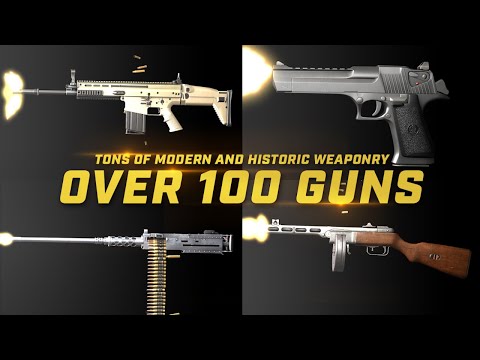 ▶
Watch: iGun Pro 2 — The Ultimate Gun Application Android Gameplay (KruGames)
One warning about videos: the original 2017 launch trailer link that many old articles embed no longer plays, so use the two videos above instead. And do not confuse this app with the original iGun Pro (2010) or with other apps called iGun — this guide is only for iGun Pro 2, App Store id 1015495041.
Strategy 1: Know what the game is — and what it is not
The most important tip in this guide, and the one that decides whether you will like the app: iGun Pro 2 has no targets to shoot, no campaign and no way to win. The App Store description calls it "the most realistic and comprehensive interactive gun encyclopedia ever created", and that is the honest pitch. What you do is collect guns, look at them, fire them, take them apart in your head, paint them and show them off. If you want a shooter, download a shooter — this app will bore you in ten minutes, exactly as our Dinsun critic warned. If you like firearms, or you play Call of Duty, Battlefield or PUBG and want a reference for what the guns in those games actually look like and how they work, this is the best free version of that on iOS.
Strategy 2: Play the card game, not the shop
Progression runs on cards and crates, per the developer's own support FAQ and the launch announcement. You earn crates — including daily crates — and open them to get cards. Cards unlock new guns, upgrade the ones you have, and unlock patterns and attachments. Duplicate cards are not waste: they feed upgrades and, once you hold a full set, can be claimed for an award card. The free route is slow by design — Dinsun called the unlock system slow and "designed to nudge you toward the wallet", and player reviews agree, with one reviewer noting the good guns cost about $20 each if bought outright. So treat the shop as a shortcut, not the game: open your free crates every day, and only spend when you have already decided a specific gun is worth it to you.
Strategy 3: Learn the firing controls on a cheap gun first
Each gun is operated the way the real thing is: tap the trigger to fire, rack the slide or bolt, swap the magazine, work the safety, and switch fire modes where the gun has them — semi-automatic, burst and full-auto. The animations and sounds are the best part of the app (Dinsun gave audio 9 out of 10), and they are also how you learn. Start with a pistol or an early rifle and practise the full sequence — load, fire, reload — before you spend cards upgrading anything, because the handling is the same on every gun and you will be doing it hundreds of times.
Strategy 4: Design for the contest, not for yourself
Design contests are the closest thing the app has to a goal: you paint a gun, enter it, and players around the world vote on it. Winners get loot and their design shown on the home screen, per the App Store description. Two things follow. First, save your best patterns instead of spending them on guns nobody will see — the painting system has version slots, so you can keep several designs per gun and reuse them. Second, look at what is winning before you enter: themed designs and clean, realistic camouflage do better than random colour splashes, according to the contest results players share. Entering costs you nothing but the design, so enter often and treat each contest as free loot.
Strategy 5: Use the gun wall and the encyclopedia, not just the firing range
Two features get overlooked. The gun wall lets you lay out your collection how you want, which is the fastest way to see what you are missing from a set — and completing sets is what earns award cards. And each gun's entry works as a reference: the app is pitched as a companion to third-party shooters, and players use it to check a gun's real-world details before using it in Call of Duty or Battlefield. If you only ever fire the same three guns, you are missing the half of the app that costs nothing.
Walkthrough 1: Your first session — install, open crates, fire your first gun
Download the app (about 222 MB, iOS 15 or later) and open it with an internet connection — the support FAQ says the app requires one. You start with a small starter collection. Open every crate the game gives you on day one, including the daily crate: crates are the main free source of cards, and cards are the only way to grow the collection without paying. Pick a pistol, tap the trigger to fire it, then reload it — watch the animation rather than rushing, because the reload gesture is different on pistols, rifles and shotguns. Then open a second gun and compare: the sounds, the recoil animation and the fire modes are different per gun, and that difference is the whole point of collecting. Do not buy anything in this session.
Walkthrough 2: Cards, crates and upgrades — the collection loop
This is the core loop, and it repeats for as long as you play. Earn crates from daily logins and design contest rewards, open them for cards, and spend cards to unlock new guns or upgrade guns you own. Upgrades raise a gun's level, which the FAQ describes as advancing through levels by earning crates. Rarities run from common up to mythic — recent videos show mythic cards such as the iGun Auto S5 card needed for the newest guns, so expect the rarest cards to be the slowest to appear. Keep duplicates: the FAQ says duplicates feed upgrades and set completion, and trading lets you swap spares with other players. Check the sets menu regularly, because award cards can only be claimed while a set is in print and for a couple of days afterwards — the claim screen shows a countdown, and once you claim, the cards you used are locked from trading until the set goes out of print.
Walkthrough 3: Attachments — build your gunsmith loadout
Open any gun you own and go to the attachment screen. Attachments include sights, grips, barrels and more, and the system allows attachment nesting — fitting an attachment onto another attachment, per the App Store description — so a sight can sit on a rail that sits on a handguard. There is no single right build: attachments change the look and the feel of the gun, not a damage stat, because there is no combat to win. So build for the contest or for realism — a red dot and a foregrip on a rifle you use as a Call of Duty reference, for example — and save the build as a version slot so you can switch back. If an attachment is locked, check which card unlocks it before you spend rubies on it: cards from crates are the free path, and the shop is the fast one.
Walkthrough 4: Painting and design contests — make a gun worth voting for
Open the painting system on a gun you like. You get customisable colours, patterns and version slots for unlimited designs, per the App Store description, and you can turn a finished design into a sticker to share by text or social media. Practical advice from contest players: start from a real camouflage or a clean two-tone scheme rather than every colour at once, and check the current contest theme before you start painting — a design that fits the theme beats a prettier one that does not. Enter the contest, then keep playing while voting runs: contest rewards are one of the few sources of crates that does not depend on the daily timer. And remember the version slots — save a design you are proud of before you paint over it, because there is no undo for a design you overwrote.
Walkthrough 5: The long game — sets, trading, clans and iGun Black
Once the first four phases feel routine, the long game is sets and the community. Complete card sets to claim award cards before they go out of print, trade duplicate cards with other players (the FAQ warns that claiming an award card is blocked if too many of your cards came from one other player, as a fraud check), and join the community on the app's Discord and Reddit pages, where players share designs and trade. Review roundups also mention clan support and real-time PvP modes added in later updates, but I could not verify those from the developer's own pages, so treat them as possibly present rather than promised. As for spending: the App Store lists iGun Black at $6.99 a month and a Season Gold Pass at $4.99, and the support FAQ says subscribers get all guns, attachments, patterns and metals unlocked plus monthly rubies — but the same FAQ says new subscriptions were closed to new users at one point, so check the in-app store before assuming you can buy it. Rubies ($0.99–$19.99) are the premium currency for crates and bundles. My advice: play free for at least a week first. If you are still opening crates daily after a week, you are the player this app is for, and then a purchase is a decision, not an impulse.
Stuck? A short checklist before you look anything up
First, check your connection: the developer's FAQ says iGun Pro 2 requires an internet connection, so crates, contests and trading will not load offline. Second, check the sets menu if a card seems missing — award cards can only be claimed while a set is in print, and the countdown on the claim screen tells you how long is left. Third, check whether the gun you want is actually in the app yet: the FAQ says guns from the original iGun Pro are being rebuilt one by one, so a favourite may simply not have been ported. Fourth, if a purchase or subscription does not appear, check the in-app store rather than the App Store page — the FAQ says subscriptions were at one point closed to new users, so what is listed and what is buyable can differ. And if a step above does not match what you see, check the two videos — the KruGames gameplay video shows the menus as they actually look.
My verdict, not Dinsun's: Dinsun scored this 60 out of 100 and said skip. I disagree — but only for the right player. If you are a firearm enthusiast, or you want a free visual reference for the guns in your favourite shooter, this is the best version of that idea on iOS: the models are detailed, the sounds are excellent, the painting and contest systems give you a reason to come back, and the free crates keep the collection moving without paying. If you want a game with goals, enemies or a story, Dinsun is right and you should skip it — there is nothing here to beat. Download it free, play it for a week, and let the daily crate decide for you.
Have you finished your collection, or are you stuck on a set or a contest? Tell us in the comments — and if you want the next walkthrough, tell us which game from our iOS list you want covered next.