
Coloring book : Colorgram is a free digital colouring book for iPhone and iPad from developer SUNWOONG JANG (copyright © 2015 noonus Inc.). It offers tap-to-fill colouring across picture categories — Floral, Famous Painting, Mandala, Animals, Sea, Architecture and Pattern — with a 100-colour palette, a drawing zoom for small areas, and sharing to Instagram, Facebook and more. One thing to know up front: this app has not been updated since version 1.5.1 in October 2017, so it is an old app running on modern iPhones and iPads — it still works, but do not expect new pictures or features.
This guide walks through the whole app in order, in phases rather than levels, because there are no levels to beat: you pick a picture, colour it in, and share it. Where a step comes from the App Store listing itself, I say so. Where our critic disagrees with the listing, I say that too, instead of pretending there is one clean answer. Our Dinsun critic scored Coloring book : Colorgram 35 out of 100 and called it “A subscription trap masquerading as a creative outlet”, recommending you skip it. That verdict needs a flag, because it does not quite match the app on the App Store today: the listing for this exact app shows no subscription at all — only two one-time purchases, Extend Color for $1.99 and Remove AD & Watermark for $1.99. A newer, different app called “Colorgram: Adult coloring book” from another developer does sell subscriptions, and the critic’s warning about a weekly fee fits that app, not this one. So take the 35 with a pinch of salt: the app itself is a simple, free tap-to-fill colouring book, and this guide shows you how to use it without paying anything.
Quick Facts
Developer: SUNWOONG JANG (noonus Inc.) | Price: Free; in-app purchases Extend Color $1.99 and Remove AD & Watermark $1.99 | App Store rating: 4.4 out of 5 (937 ratings) | Size: about 33 MB | Requires iOS 7.1 or later | Age rating: 4+ | Playtime: open-ended — no levels, no ending, colour for as long as you like. Version 1.5.1, released 10 November 2015, last updated 25 October 2017.
Get Coloring book : Colorgram on the App Store
This is an unofficial fan guide and is not affiliated with SUNWOONG JANG or noonus Inc. How the app works is taken from the App Store listing, because no published guide or review of this exact app exists to cross-check against. The app can change with updates, so treat this as a working route through the app, not gospel.
Watch the game first
There is no video of this exact app on YouTube that we could verify — no official trailer and no gameplay video of Coloring book : Colorgram itself. So instead, here are two videos about colouring apps in general, so you can see how tap-to-fill colouring works and what to watch out for before you pay for anything. Click a picture to watch on YouTube.
 ▶
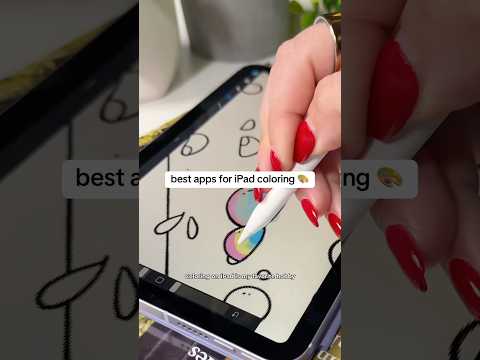 ▶
Watch: Tom’s Guide – “Best Coloring Apps for iPad I Recommend!” — a general roundup, not this app
What you will see in those videos is exactly the kind of play this app offers: pick a picture, pick a colour, and tap an area to fill it in. The first video is also a useful warning — many colouring apps now charge weekly or monthly subscriptions, so it is worth knowing what you are paying for before you tap anything that asks for money.
Strategy 1: Start with a big, simple picture
Your first picture should be an easy one: a mandala or an animal with large enclosed areas, rather than a detailed Famous Painting or Architecture scene. The whole app is tap-to-fill — pick a colour, tap an area, and it fills — so a picture with big areas teaches you the loop in a minute: one colour, one tap, instant result. Save the intricate pictures for later, once you know how the palette and the zoom feel. If a tap does nothing, the area may not be fully enclosed, or you may be zoomed in on the wrong part of the picture — zoom out and try again.
Strategy 2: Use the 100-colour palette and the zoom together
The listing promises a simple colour palette with 100 colours and a drawing zoom, and those two tools are the whole craft of the app. Pick your colour first, then tap the area — and when you reach the fiddly parts, zoom in before you tap, so you fill the small area you meant to and not the one next to it. Work the big areas first and the details last: a mandala looks finished when the large petals are coloured, and the tiny gaps are a finishing job, not a starting one. Tapping an already-filled area with a new colour re-fills it, so mistakes are free — try a colour, and if you do not like it, tap the same area again with another.
Strategy 3: Do not pay anything before you have tried the free pictures
The app is free to download, and its only purchases are two one-time $1.99 items: Extend Color, which adds colours beyond the free palette, and Remove AD & Watermark, which takes away the ads and the watermark on your saved pictures. Neither is needed to colour a picture. The listing does not say how many pictures are free, so I cannot tell you a number — try the gallery first and see how far the free pictures take you before you spend anything. And if you ever see a weekly or monthly subscription offer inside a colouring app, stop: this app’s listing shows no subscription, so a subscription screen means you may have opened the newer Colorgram app by a different developer, not this one.
Strategy 4: Pick a category to suit your mood
The listing promises categories from Floral and Mandala to Famous Painting, Animals, Sea, Architecture and Pattern, and that variety is the app’s main strength. Mandalas and Patterns are the relaxing, repetitive ones — good for winding down. Animals and Sea are the friendly, simple ones — good for a quick session. Famous Painting and Architecture are the detailed ones — good when you want a longer project. There is no right order and no score, so pick whatever appeals to you today and switch categories whenever you like.
Strategy 5: Share the finished pictures, and save them first
The listing says you can share your creations with friends on Instagram, Facebook and more, and sharing is the closest thing this app has to a reward: a finished picture is meant to be shown to someone. Before you open a new picture, share or save the finished one — once you move on, the finished picture is gone unless you saved it. One warning: the free app puts a watermark on saved pictures, which is exactly what the $1.99 Remove AD & Watermark purchase removes. If a watermark bothers you, that is the one purchase worth considering — and it is a one-time $1.99, not a subscription.
Walkthrough 1: First open — pick a picture
Open the app and pick a picture from the gallery of illustrations. The listing promises categories including Floral, Famous Painting, Mandala, Animals, Sea, Architecture and Pattern, so browse those first and tap any picture to open it. Start with a mandala or an animal — big enclosed areas are the easiest first fill. If a picture will not open, try another one: the app is version 1.5.1 from October 2017 and unmaintained, so a picture that misbehaves on a modern iPhone is best skipped rather than fought with.
Walkthrough 2: Colour it in with tap-to-fill
With a picture open, pick a colour from the palette — the listing promises 100 colours — then tap an area of the picture. Tap-to-fill colours that whole enclosed area in one tap. Work through the picture area by area: the background first, then the big shapes, then the details. Change colours as often as you like — tapping an already-filled area with a new colour re-fills it, so there is no penalty for experimenting. This is the core of the app, and it is the whole game: tap, fill, repeat. There is no timer, no score and no way to lose.
Walkthrough 3: Zoom in for the small areas
When the big areas are done, use the drawing zoom the listing promises to get into the small ones. Zoom in on a corner of the picture, pick your colour, and tap the tiny areas one by one. This is where a mandala or a Famous Painting takes its time — the small areas are the slow part, so do them last, when the picture already looks mostly finished and you can see what each small patch should be. If you tap the wrong tiny area, just tap it again with the right colour: nothing is permanent until you share the picture.
Walkthrough 4: Finish the picture
Once every area is filled, zoom back out and look at the whole picture. Check for any small white or unfilled patches you missed — they are easy to spot at full view and easy to miss while zoomed in. Fill any stragglers, then step back and decide whether the colours work together. Because re-filling is free, this is the moment to fix anything that looks off: swap a colour that clashes, or fill a background area you left blank. When the picture looks finished to you, it is finished — the app gives you no fanfare of its own, so the judgement is yours.
Walkthrough 5: Save it and share it
Before you open a new picture, share the finished one. The listing says you can share your creations on Instagram, Facebook and more — look for the share button on the colouring screen and pick where to send it. If you skip this step and open a new picture, the finished one is lost. Make sharing a habit: pick, colour, zoom, finish, share, then pick the next picture. And remember the watermark: free shared pictures carry one, and the only way to remove it is the one-time $1.99 Remove AD & Watermark purchase — there is no subscription to cancel, because this app does not sell one.
Stuck? A short checklist before you look anything up
First, remember there is no way to get stuck in this app in the usual sense — there are no levels, no puzzles and no fail state. If a tap does nothing, check that you are tapping a fully enclosed area and that you are not zoomed in on the wrong part of the picture — zoom out and try a bigger area first. Second, if ads keep interrupting you, that is the free app working as designed: the $1.99 Remove AD & Watermark purchase takes them away, or you can just close each ad and carry on for free. Third, if the app behaves oddly, remember it is version 1.5.1 from October 2017 with no updates since — closing the app fully and reopening it is the most reliable fix for an app this old. Fourth, about subscriptions: our Dinsun critic warned about a weekly subscription, but the App Store listing for this exact app shows no subscription — only two one-time $1.99 purchases. If you see a subscription offer, double-check you are in this app (developer SUNWOONG JANG, copyright 2015 noonus Inc.) and not the newer Colorgram app by a different developer, and do not subscribe to anything without checking the price first. And if you run out of pictures you like, remember the listing does not state how many pictures are free — try another category before assuming you have seen them all.
Have you tried Coloring book : Colorgram, or are you stuck somewhere else in the app? Tell us in the comments — and if you want the next walkthrough, tell us which game from our iOS list you want covered next.